Using the Calendar
The Calendar shows event dates, schedule blocks, and task due dates across projects so you can plan crew, travel, and equipment around real timing.
When to use this page
Use Calendar when you need a week or month view of what is coming up, not just a single project.
Who can do this
All workspace members can use Calendar. Project guests see calendar items for projects they can access.
Open Calendar
Select Calendar in the main navigation.
Views
| View | Best for |
|---|---|
| Month | Spotting busy weeks and event clusters |
| Week | Planning crew and travel day by day |
| Day | Hour-by-hour detail for one date |
| Agenda | Scrolling list of upcoming items |
Switch views from the calendar header. On mobile, views adapt to smaller screens.
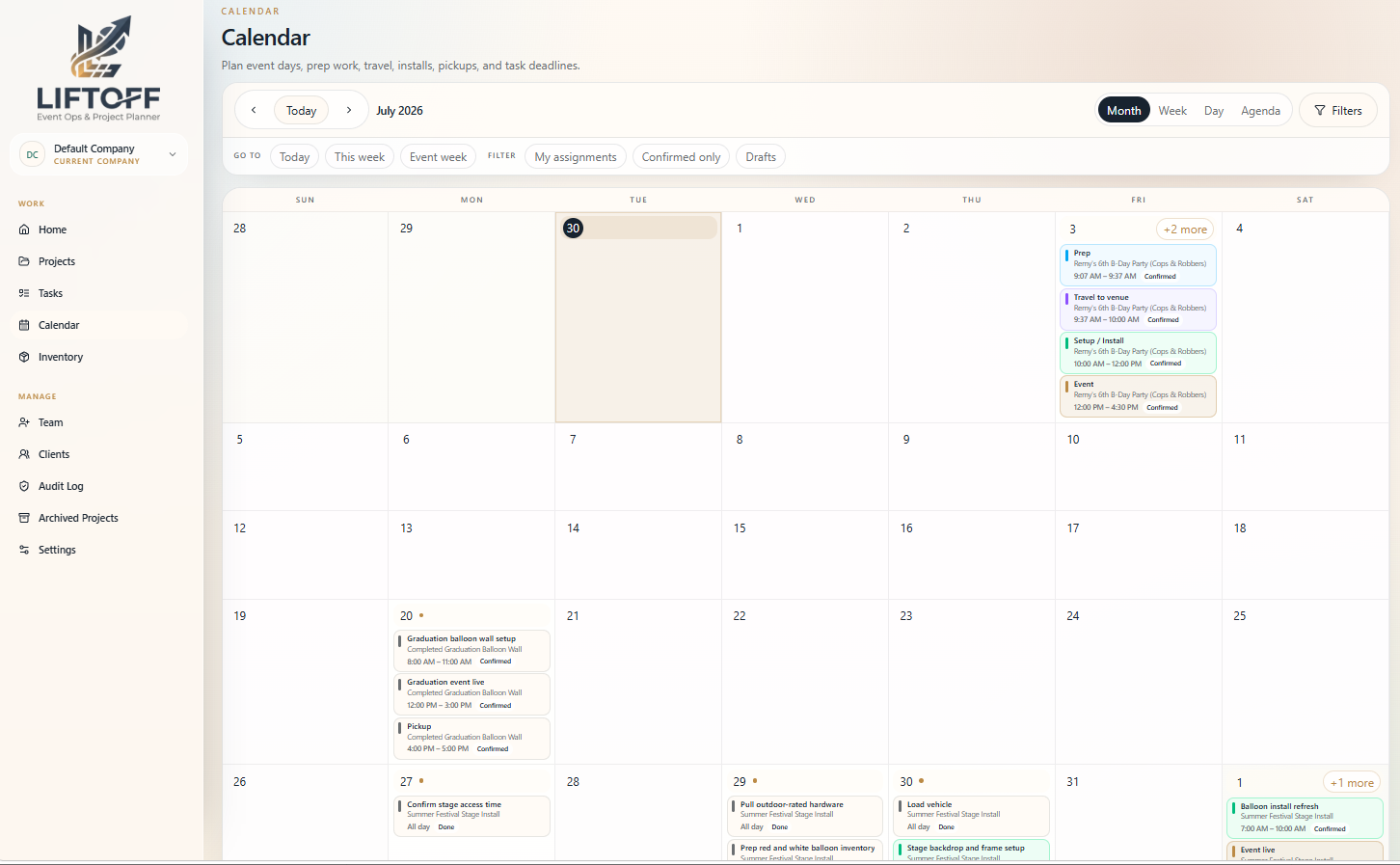
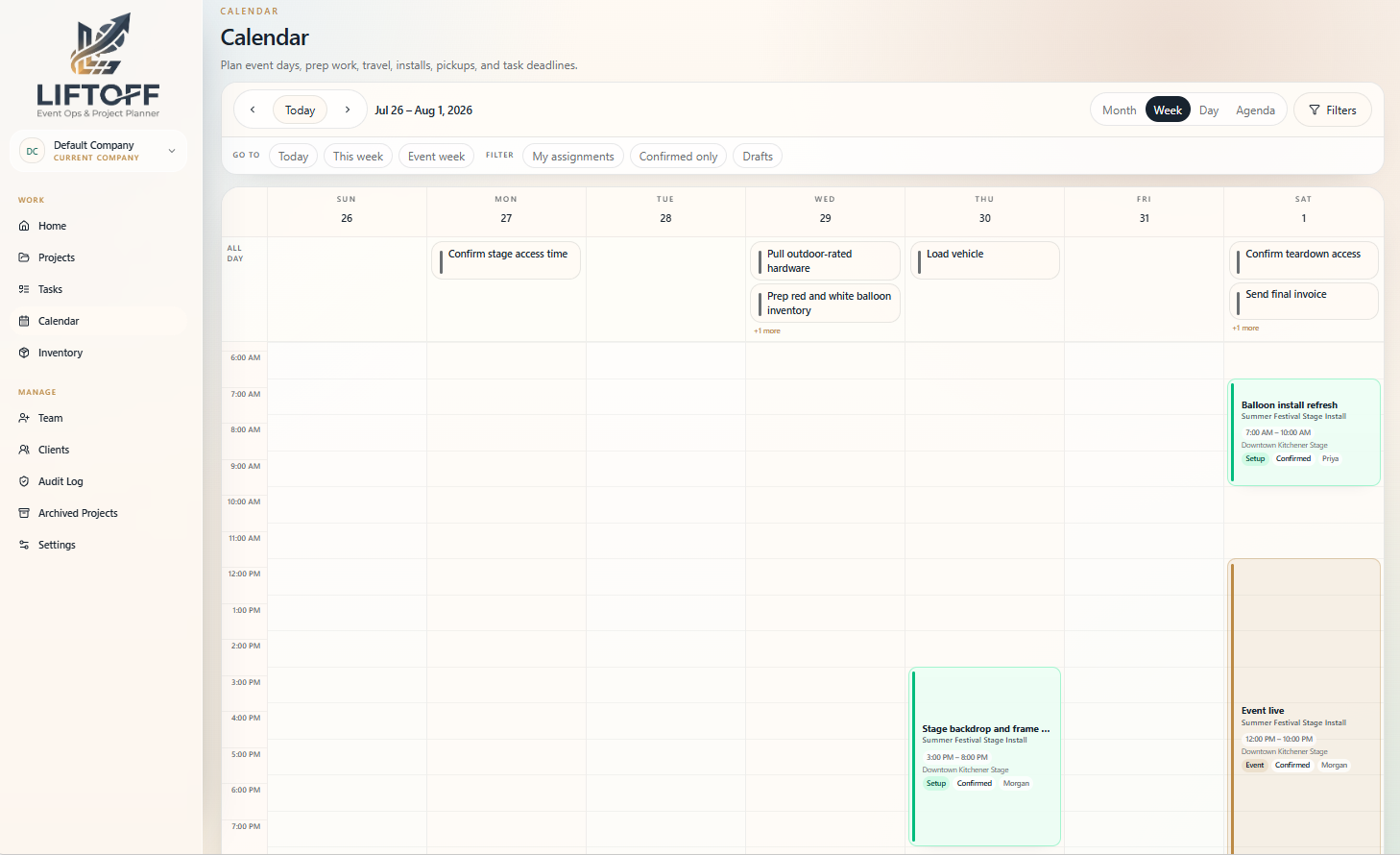
What appears on the calendar
- Project events: Key dates from project schedule fields
- Schedule blocks: Prep, travel, setup, event, teardown, and related blocks
- Task due dates: Tasks with due dates shown as calendar items
Filters
Narrow the calendar with filters for:
- Project
- Client
- Assignee
- Block type
- Status
Toggle visibility of schedule blocks, tasks, and project anchors to reduce noise.
Open an item
Select a calendar item to see details. From there you can jump to the project or edit a schedule block when you have permission.
Next steps
- Edit timing in Schedule Blocks or on the project timeline.
- Create missing work as tasks when due dates need owners.
Good to know
- Calendar content depends on projects having dates and schedule blocks configured.
- Very dense weeks may be easier to read in Agenda view.