Viewing a Project
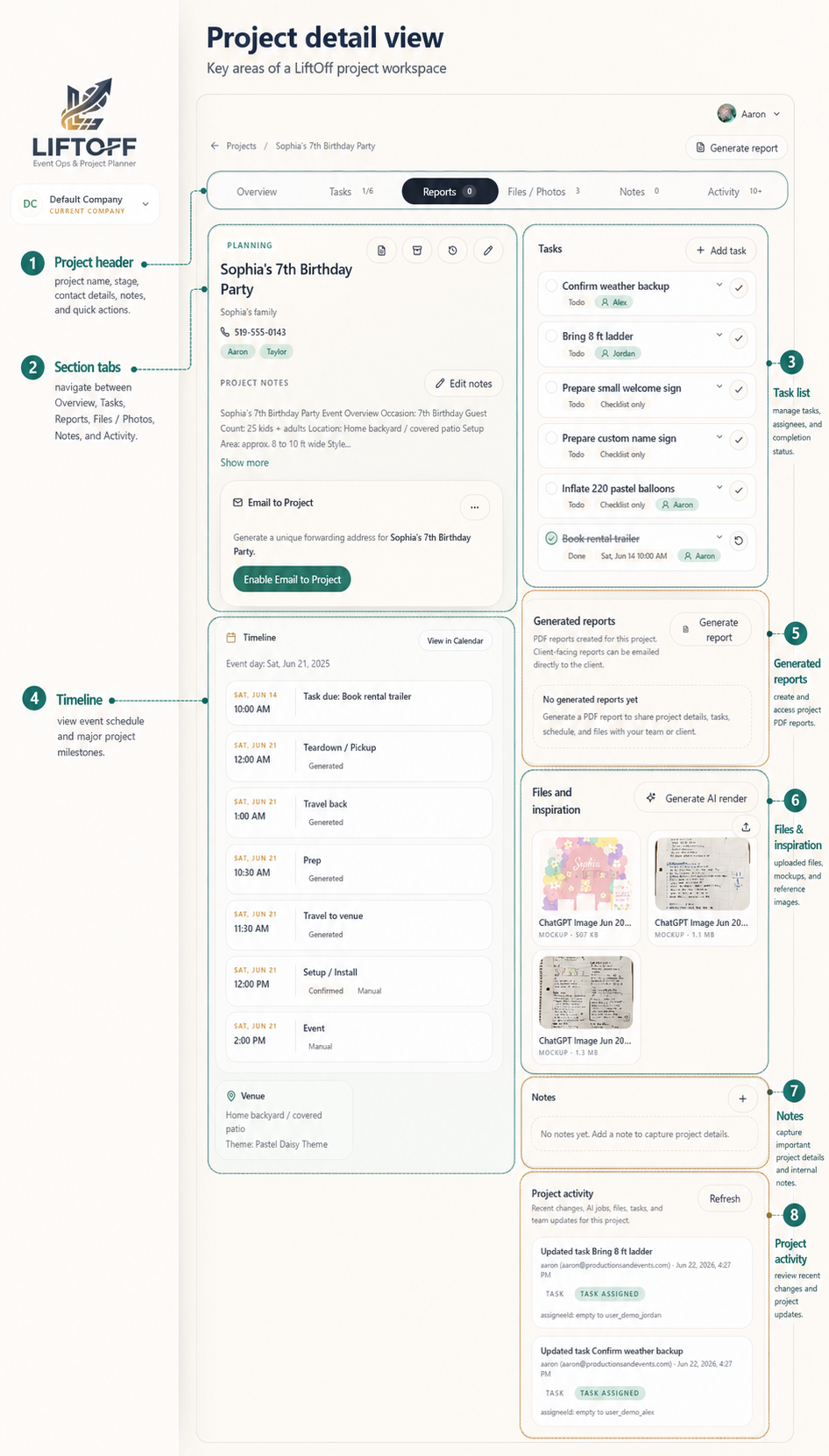
The project detail page is your command centre for one event. Everything for that production lives here: overview, tasks, schedule, inventory, reports, files, notes, and activity. Albums have a compact card on the project page and a dedicated album workspace for full management.
See the walkthrough: Project Detail Page for a screenshot-led tour.
When to use this page
Open a project when you need the full picture: event details, what is still open, recent notes, uploaded files, and what changed recently.
Who can do this
Anyone with access to the project can view it. Project guests only see projects they were invited to.
How to open a project
- Go to Projects or Home.
- Select the project title.
- The project detail page opens on Overview.
Project sections
Use the section navigation to move around the page:
Overview
- Project title, client, status, and event date
- Summary and theme
- Event venue and schedule timing
- Project timeline (setup, event, teardown, and key tasks)
- Assigned team members
- Trailer recommendation when AI flagged transport needs
- Email to Project alias setup
- Album card with quick open, upload, and sharing actions
Tasks
All tasks for this project, plus any AI suggested tasks waiting for review.
Schedule
Schedule blocks for prep, travel, setup, event, teardown, and related timed work. See Project Schedule.
Inventory
Catalog items matched to this project from notes, files, or AI suggestions. Items that still need a catalog match appear here too so you can rent, buy, make, substitute, dismiss, or add them to inventory.
Reports
Generate project reports, view past report requests, and download PDFs.
Files / Photos
Uploaded documents, photos, mockups, recipes, and AI renders.
Album
The Album card in Overview shows album status, media count, and quick actions. Click Open Album to manage photos and videos on the dedicated album page. See Albums.
Notes
Project notes with attachments and comment threads.
Activity
A running log of important changes on this project.
On mobile, tap a section pill to jump there. Primary tabs are Overview, Tasks, Files, Notes, and More. Sections can collapse to save space.
Project header actions
Depending on your role, the header may include:
- Edit project: Opens Quick Add with the project form
- Generate report: Starts the report workflow
- Archive: Moves the project to archived state
- More: Additional actions on mobile
Next steps
- Add work with Creating Tasks or Adding Notes.
- Upload reference material in Uploading Files.
- Review inventory in Matching and Catalog Gaps.
- Check Project Activity after major updates.
Good to know
- Archived projects show a banner and limit some editing.
- AI features may be unavailable until profile setup is complete or for project guests.